// Docs
Drawing and editing shapes
Draw (at the top) draws and changes the shapes the operations use. Each tool has a key. Drawings come in with Import: DXF, DWG (beta: read in the browser by GNU LibreDWG; text, hatches and dimensions are left out), SVG, or an image to trace.
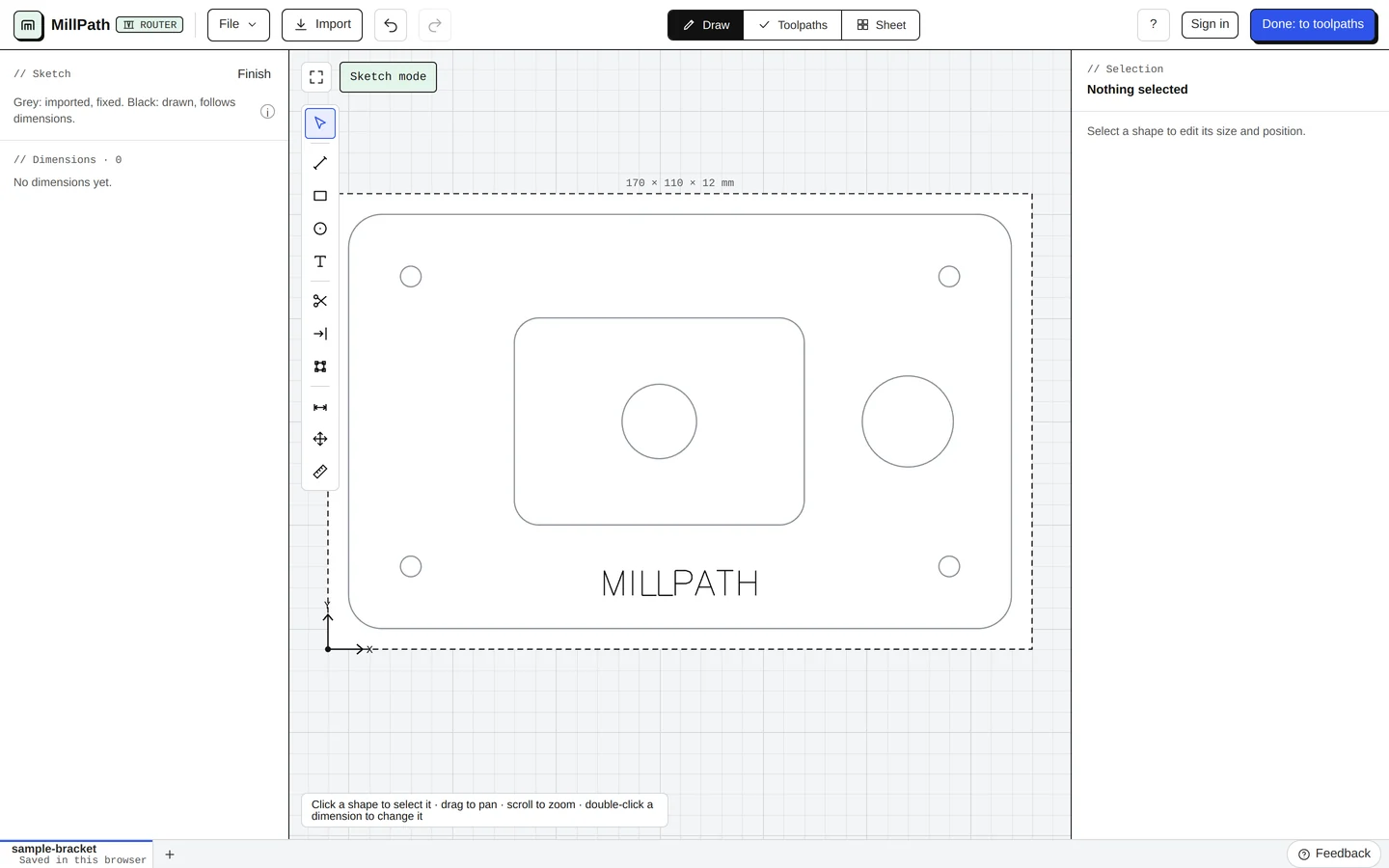
- Select (V), Line (L), Rectangle (R), Circle (O), Text (X): draw by clicking, or type sizes and distances.
- Trim (T) and Extend (E): cut a line back to the nearest crossings, or lengthen it to the next curve.
- Edit points (N): click a line or outline, then drag its points (they snap to other shapes’ points and the grid; hold Alt not to snap); double-click an edge to add a point, a point to delete it. An outline with very many points (a curve from a file) is simplified first: Simplify points under Edit keeps it within 0.05 mm with far fewer points; Circle to points turns a circle into an outline of 72 points.
- Dimension (D), Move / copy (M), Measure (Q): sizes that hold after later edits, moving and copying, and measuring.
Part from sizes
File → Part from sizes… draws a common part from a few sizes: a flange or washer (outside, bore, bolt holes on a bolt circle), a plate with holes (size, corner radius, holes along the edges, a centre hole), a gusset (two legs, the corner clipped for the weld, holes, a lightening hole) or an L bracket (two arms, an inner fillet, holes along both arms). It warns when the sizes do not work (a hole through the edge, bolt holes overlapping), and adds the part beside what is drawn, as ordinary shapes to edit, nest and cut.
Edit (selected shapes)
With shapes selected, in Draw, and on plasma and laser machines in Toolpaths too, Edit offers round corners and, with two or more closed shapes: Combine (one outline round them), Subtract (the first selected less the others), Intersect (only where they overlap), Exclude (where they do not overlap) and Cut into pieces (every overlap its own piece, for multi-colour fills and inlays). New outlines keep the layer and file colour of the first shape.
Text on a path
Select a text (single-line or outline) and one line, outline or circle, then Put the text on the path: the text bends along it. Along the path moves it from where its alignment puts it (left: the start, centre: the middle, right: the end); Other side runs it the other way round (outside a circle instead of inside). Straighten puts it back. The text keeps a copy of the path, so the path shape can be deleted.
Variable text (serial numbers)
In a single-line text, {n} engraves a serial number, {n:3} the same with 3 digits (007), {date} today’s date. The drawing shows the pattern; the program engraves the values. Select the text to set the next number and the step; with Move on after each export or send, every export or send uses the next number.