// Docs
Workshop mode on a phone
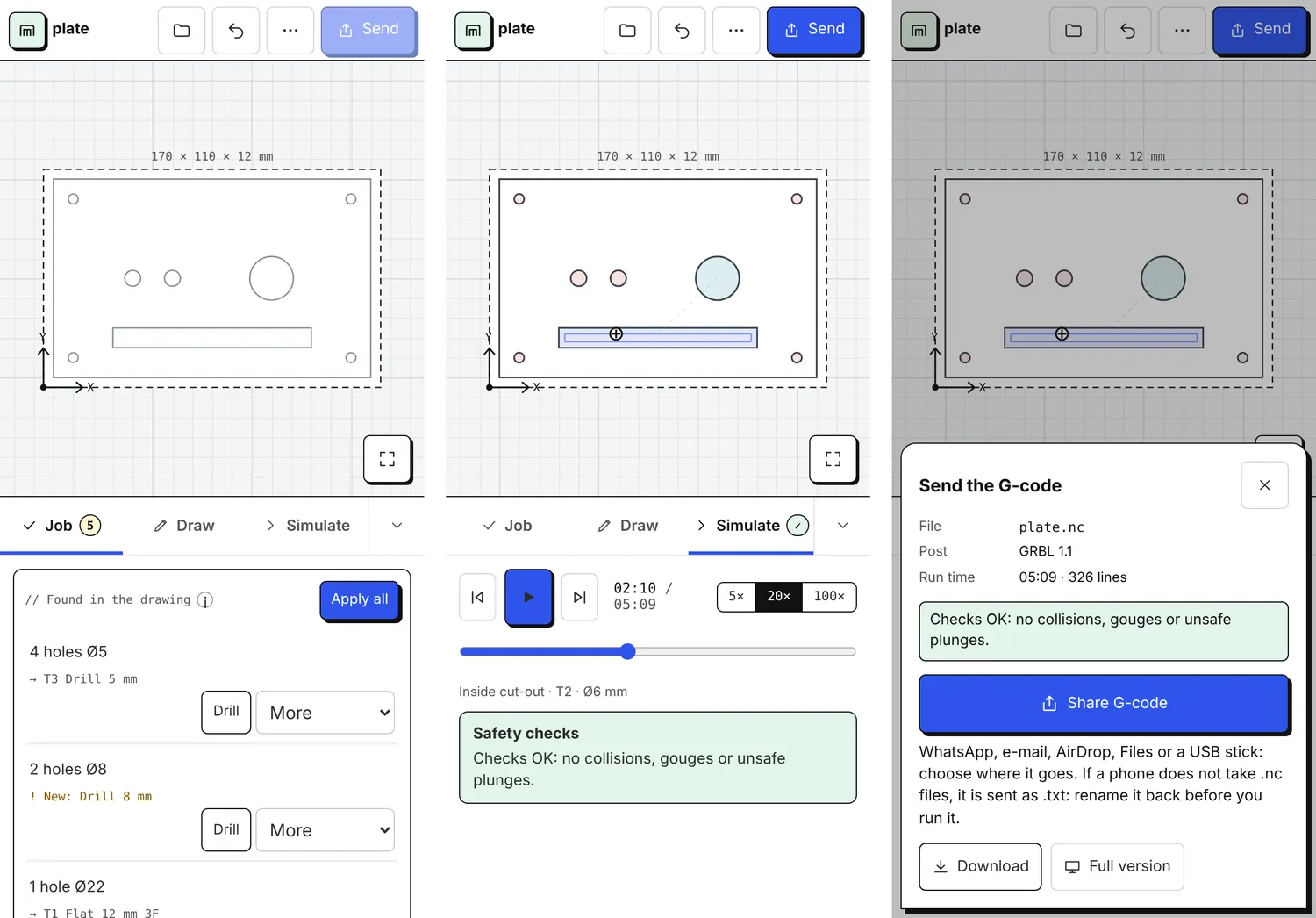
On a phone MillPath opens in workshop mode: the drawing fills the screen, a panel below it holds the job, the drawing tools and the simulation, and Send at the top hands the G-code to the phone’s share sheet. It is made for the shop floor: open the file a customer sent, check it, change a size, and send the program to the machine’s computer.
Opening a file
- Open a file reads a DXF or SVG drawing, a picture (traced into outlines) or a saved project (.mpj). Drawings are read on the phone, not uploaded.
- The folder button at the top opens another file. The ⋯ menu has Redo, New project, Save the project file, your account, the machine type and units, Feedback and Full version.
Moving round the drawing
- One finger drags the drawing; two fingers pinch to zoom and move it.
- Tap a shape to select it: the Job panel then offers operations for it. Tap empty space to deselect.
- The corner button fits the job in view again.
Job
Found in the drawing lists the holes by size, outlines, slots, pockets and lines, each with the usual operation and the tool it would use. Apply all uses every suggestion. Tools come from the project and your tool library; when none fits, a tool of a usual size is made and marked New in yellow: check its feeds.
Below it are the operations in machining order. Tap one to change its depth, tool and settings; the eye leaves it out of the program; the bin deletes it. On plasma and laser the operations come from the drawing’s colours, or Cut all outlines in one tap.
Draw
Rectangle, Circle, Hole (asks for the diameter), Text and Part from sizes. A new shape is selected, and its sizes and position are typed in under the buttons.
Photo of a drawing
From a photo (Draw, or Photo of a drawing on the start screen) turns a sketch on paper, a paper template or a part laid on the sheet into shapes at their real size.
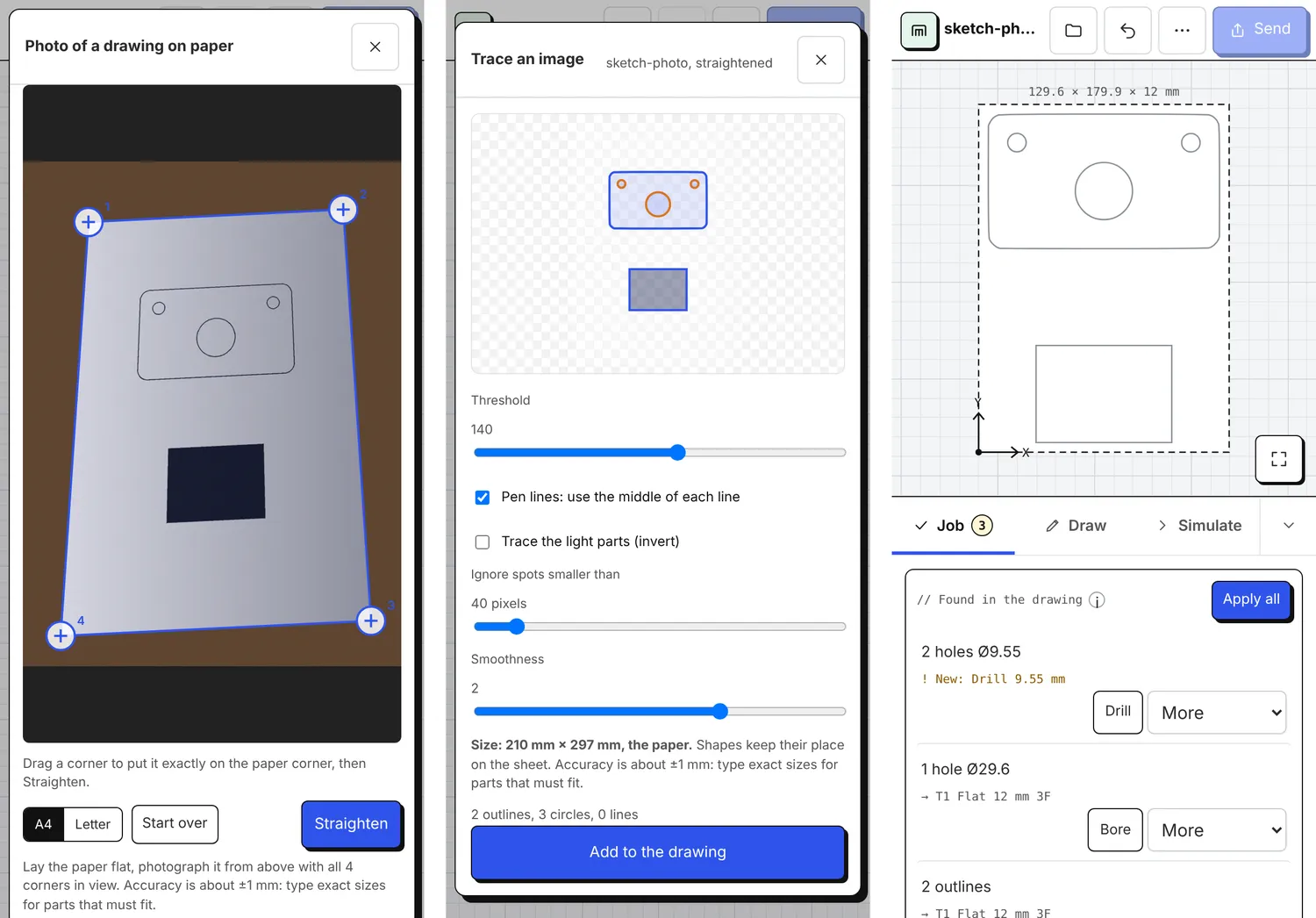
- Lay the paper flat and photograph it from above with all 4 corners in view. A4 and Letter are known sizes.
- Tap the paper’s 4 corners, in any order. Drag a corner to put it exactly on the paper corner: a magnifier shows the spot under your finger.
- Straighten corrects the perspective, scales the sheet to its real size and evens out the light (a shadow or a lamp at one side).
- In the tracer, Pen lines (on for a photo) keeps the middle of every line you drew: a drawn circle becomes a real circle, so Found in the drawing offers to drill it, and circles drawn the same size get one size. Filled areas keep their edge. Move the threshold until the preview matches the drawing, then Add to the drawing.
The shapes keep their place on the sheet. Accuracy is about ±1 mm: type the exact sizes of parts that must fit (tap the shape, Draw). On the computer the same steps start from Import with a picture: A photo of paper? Straighten it first.
Simulate
Play, scrub and change the speed. The safety checks run after every change: rapid collisions, gouges, unsafe plunges and cuts into the table. Each problem has a Show button that jumps to it.
Send
Send shows the file name, the post, the run time and the checks. The program goes only when the checks are OK.
- Share G-code opens the phone’s share sheet: WhatsApp, e-mail, AirDrop, Files or a USB stick.
- Some phones (most Android ones) do not share unknown file types such as
.nc. The file then goes as.txt: on the machine’s computer, rename it back (plate.txttoplate.nc) if its program needs the extension. - Download saves the file on the phone instead.
Sending counts as an export, as on the computer, and needs a free account. A post that is new to the machine runs in the air first.
On the computer
3D models, nesting on a sheet, two-sided work, tiles, the post editor and editing the tool library are in the full version. Full version in the ⋯ menu (or on the start screen) switches; the phone remembers the choice, and Workshop mode in the full version’s top bar switches back. With backup on, the same projects are in your account on every device.